This article was converted by SimpRead; original source: blog.dewsweet.cc
Chapter Two — Re-examining Video
If opening each webpage individually is cumbersome, here is the complete PDF.
Yet another “well-worn topic”: Whenever someone complains about poor video quality on online platforms, I’m tempted to jump in and give them an impromptu lecture—but I don’t, because it’s exhausting and they clearly aren’t interested in hearing a long explanation.
If opening each webpage individually is cumbersome, here is the full PDF
Yet another “well-worn topic”: Whenever someone complains about poor video quality on online platforms, I’m tempted to jump in and give them an impromptu lecture—but I don’t, because it’s exhausting and they clearly aren’t interested in hearing a long explanation. If your knowledge of “video formats” stops at MP4, then the following content may seem relatively complex—and will certainly refresh your understanding of what “video” truly entails.
If you frequently watch videos on domestic Chinese platforms, you’ll surely recognize the scenario below:
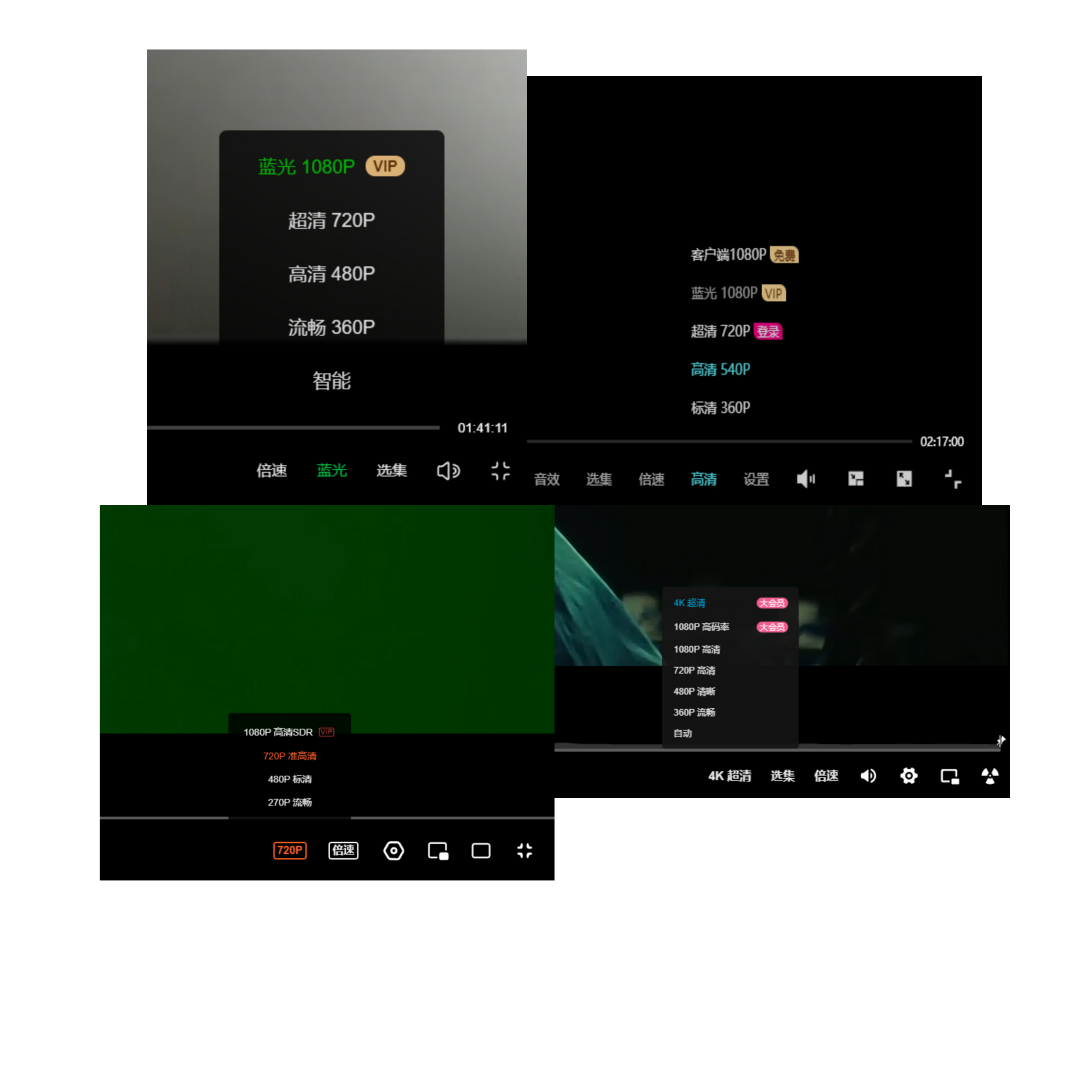
When selecting “quality”, we naturally opt for the highest available option—yet upon closer inspection, you’ll notice that these platforms’ “quality options” are far from standardized. The only commonality is a numeric value followed by a “P”, plus labels like “SD (Standard Definition)”, “Smooth”, “HD (High Definition)”, and “Blu-ray”—not to mention the highest-tier quality reserved exclusively for paid subscribers.
Let’s now examine a foreign video website that most typical methods cannot open:

This site appears to contain almost no Chinese characters. You’re likely already familiar with the numbers shown—they indicate resolution, i.e., the number of pixels (Pixel) comprising the video: its width × height. For example, a 1080p video has dimensions of 1920×1080, meaning each frame contains 1920×1080 individual pixels. As for the “p” suffix—this is not a unit of resolution. Rather, “p” stands for progressive scanning. Its counterpart is “i”, denoting interlaced scanning. Interlaced scanning was used on older “CRT televisions” (bulky, tube-based TVs)—and, coincidentally, my household still owns one. These vintage TVs relied on cathode-ray tube imaging. The fundamental distinction between interlaced and progressive scanning lies in how frames are rendered: “p” displays all lines sequentially, from top to bottom, in a single pass; “i” typically renders odd-numbered lines first, then even-numbered lines—a technique optimized for bandwidth efficiency under legacy technical constraints. Interlaced scanning was prevalent on older CRT TVs and some broadcast television systems, but it is exceedingly rare today. Consequently, over 99% of modern video content uses progressive scanning. When interlaced video is displayed on progressive-scan devices, artifacts known as “combing” or “field tearing” appear—especially noticeable during motion.

Returning to resolution: Domestic platforms habitually attach qualifiers like “xx-definition” (e.g., “HD”, “Ultra HD”) to resolution values—but much of this labeling is misleading. What resolution qualifies as “HD”, exactly? Is it 1080p? Partially correct—but not entirely. Under television standards, common HD (High Definition) resolutions include 1080p, 1080i, and 720p; 1080p is also referred to as FHD (Full High Definition). What about “Blu-ray”? There’s also UHD (Ultra High Definition), which applies only to resolutions of 3840×2160 or higher. Specifically, 2160p denotes 4K resolution (“k” signifies thousands of horizontal pixels; “p” indicates progressive-scan vertical pixel count; standards need not be rigidly pursued). “Blu-ray” itself refers to Blu-ray Disc (BD), a physical optical disc format—it bears little direct relation to resolution standards. Domestic platforms’ frequent use of “Blu-ray” labeling likely stems from the fact that many BDs adopt 1080p resolution. In reality, most domestic platforms can’t even consistently distinguish true “HD” content—let alone other classifications—resulting in widespread mislabeling.
Gamers know well that, besides resolution, another critical parameter is frame rate, measured in Frames Per Second (FPS). Higher FPS yields smoother gameplay. In video, FPS represents the number of individual frames displayed per second—revealing that video is fundamentally a sequence of still images. Consider a single 1920×1080 image with 24-bit color depth: its raw size equals resolution × bit depth = 1920×1080×24 bits ≈ 6 MB (after conversion: ÷8 for bytes, ÷1024² for MB). A video’s raw size is calculated as resolution × bit depth × FPS × duration. For instance, a 1-second, 60-FPS, 1080p video with 8-bit RGB color depth occupies:
1920×1080×8×3×60×1 ÷ 8 ÷ 1024² ≈ 355.96 MB
(where “×3” accounts for RGB’s three color planes; “÷8” converts bits to bytes; “÷1024²” converts to MB). You might be astonished: just one second of raw video consumes over 300 MB! Yet, streaming a typical 1080p anime episode on domestic platforms requires only ~500 MB. This stark contrast underscores the vital role of video encoding. Without compression, digital media—images, audio, or video—consume enormous storage space. Thus, numerous algorithms have been developed to compress such data efficiently: this process is called encoding, and its quantitative expression in video/audio is termed bitrate, usually measured in Kbps or Mbps. Bitrate directly determines final file size, since compressed video size = total bitrate (video + audio) × duration. Higher bitrates yield larger files—and generally better visual fidelity. For example, a 10 Mbps 1080p video often looks superior to a 1 Mbps 4K video. However, excessively high bitrates offer diminishing returns: beyond a certain threshold, human vision cannot discern further improvements. For instance, 50 Mbps and 20 Mbps versions of the same 1080p video may appear nearly identical; sometimes, a carefully optimized 10 Mbps version even outperforms a 50 Mbps counterpart. Hence, balance—not extremism—is key when evaluating video quality.
Resolution, frame rate, and bitrate constitute the three fundamental parameters of video. Earlier, while calculating raw video size, I mentioned another key concept: color depth, measured in bits. Color depth reflects the precision of color representation—essentially, how finely colors are quantized—in digital imagery (a virtual construct). By contrast, bit depth, also measured in bits, describes the precision of analog-to-digital (or digital-to-analog) conversion hardware (a physical attribute). Common examples include 8-bit and 10-bit displays. On monitors, bit depth manifests as the number of distinct steps visible in smooth color gradients.
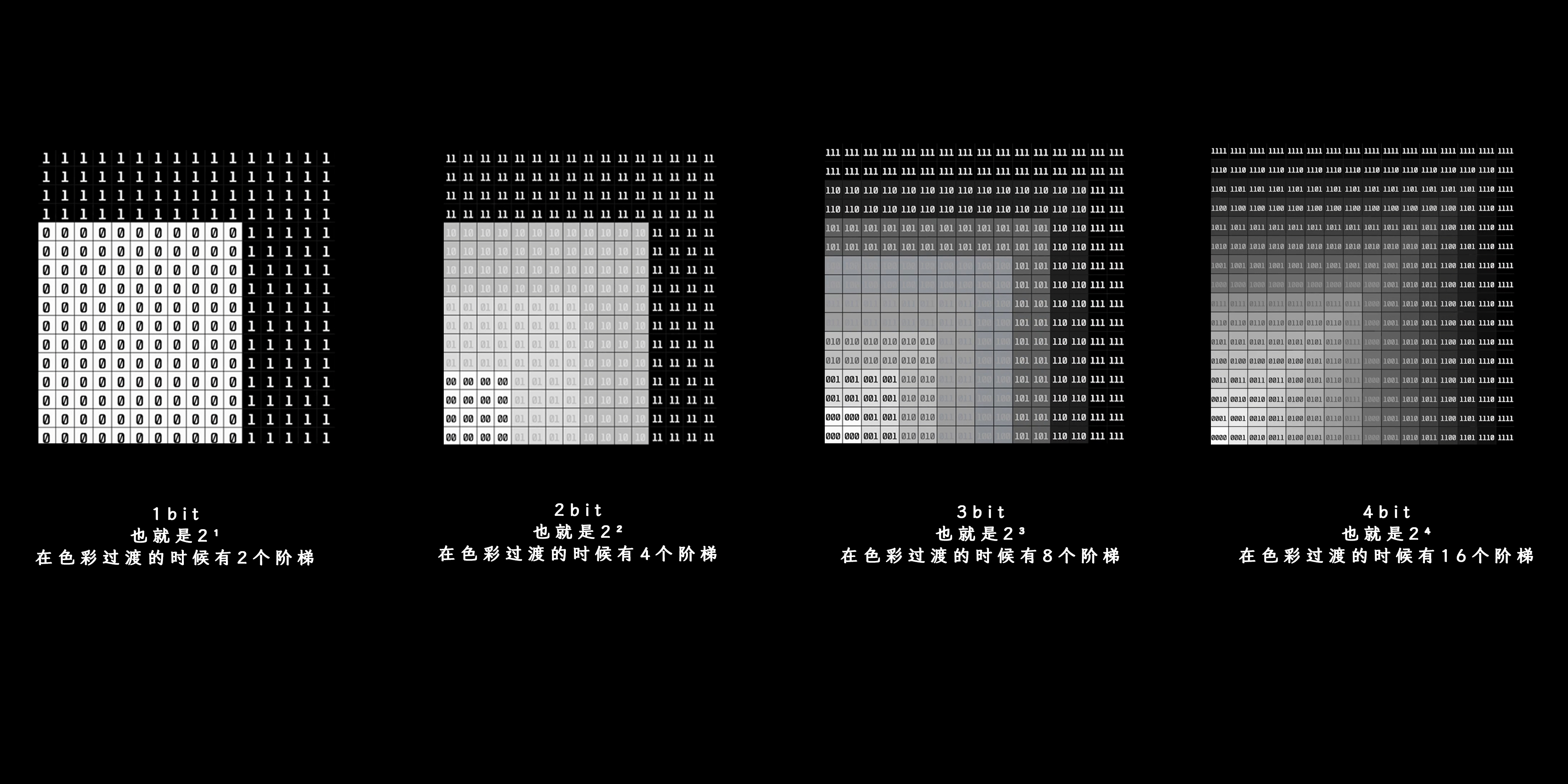
As shown, 10-bit displays offer finer gradation and smoother transitions than 8-bit ones, whereas 8-bit displays often exhibit visible “banding”—resembling terraced fields.

Similarly, due to lower precision, 8-bit video more readily reveals banding compared to 10-bit video—particularly noticeable in anime (“2D animation”).
When downloading torrents, you’ll often find files ending in .mkv, not the familiar .mp4. Before rushing to transcode these into .mp4, let’s first clarify terminology. Yes, MP4 is a “video format”—but only half-accurately. More precisely, it’s a container format: think of it as a “box” capable of holding multiple components—video streams, audio tracks, multiple subtitle files, chapter markers, embedded fonts, or even standalone images. This parallels railway tracks at train stations—we call these “tracks”.
To play video, simply direct the “video train” along the video track—it then appears before you. What happens if a container holds two “video trains” (i.e., two video tracks)? As demonstrated, a single video file can contain multiple video streams; playback merely selects the desired track.
Once you grasp video tracks, other track types become intuitive:
- Audio tracks: Multiple audio tracks are possible, though most files contain only one video track paired with one corresponding audio track.

- Subtitle tracks: Subtitles fall into “hard” and “soft” categories. “Hard subtitles” are permanently baked into the video frames themselves. “Soft subtitles” come in two forms: (1) external subtitles, stored separately and loaded during playback; and (2) embedded subtitles, packaged alongside video and audio tracks within the same container file. Below is an example of embedded subtitles supporting multiple languages.

- Beyond tracks, containers allocate dedicated sections for metadata tags, analogous to music files. For instance, a video’s cover art can be stored separately in a “cover tag”, overriding thumbnail previews in file browsers. Similarly, chapter markers (like those indicating scene breaks) reside in metadata tags.

Naturally, containers support additional track types—but commonly, only video, audio, and subtitle tracks appear. Theoretically, any number of tracks per type can coexist; however, typical container formats (e.g., MP4) usually feature just one video track paired with one audio track.
We know both .mp4 and .mkv are container formats—a mere “box” or “wrapper”. So what distinguishes MKV from MP4? Primarily, their compatibility with encoded media formats. Recall that encoding algorithms shrink raw video size; the resulting compressed data adheres to specific standards called codec formats, often broadly termed media formats. Container formats differ mainly in which media formats they support.
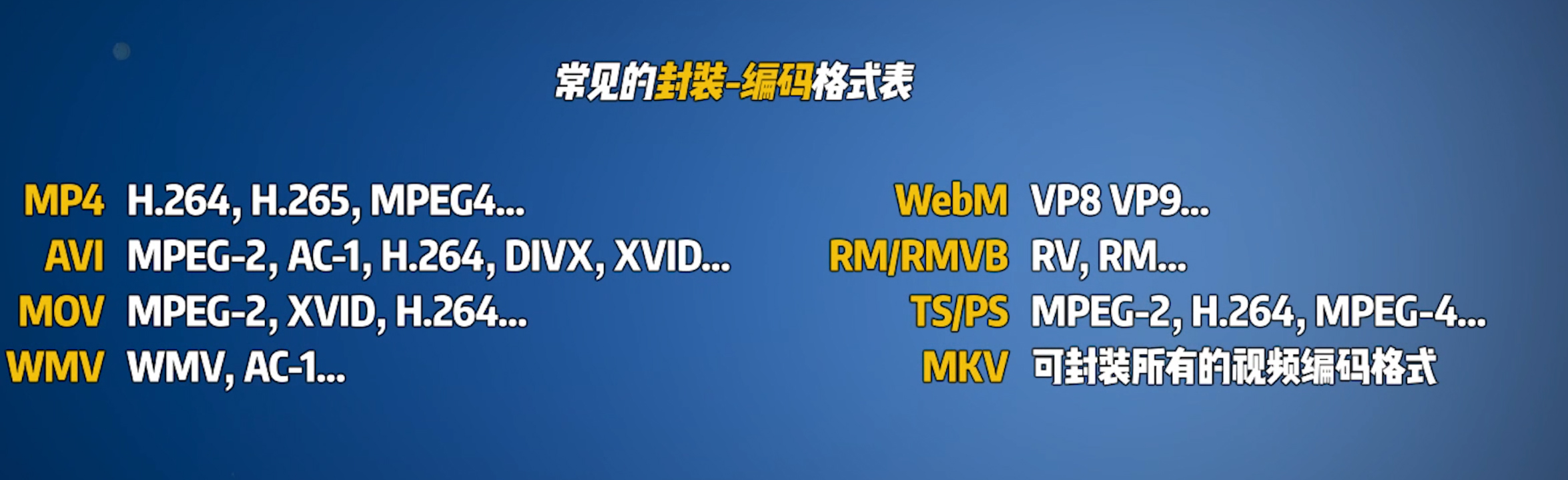
MKV boasts near-universal compatibility, supporting virtually all media formats—an impressive capability. For practical purposes, remember two widely used video codecs: H.264/AVC and H.265/HEVC. H.264 and H.265 were standardized by the ITU-T (International Telecommunication Union–Telecommunication Standardization Sector), while AVC and HEVC were defined by ISO (International Organization for Standardization). Though developed by different bodies, these standards share nearly identical technical specifications and are generally treated as functionally equivalent. Key differences lie in efficiency: H.265 typically achieves significantly smaller file sizes for identical quality—but demands greater hardware resources, potentially causing playback issues on older devices. However, HEVC-encoded video isn’t inherently superior to H.264—optimal choice depends entirely on your specific needs.
Digital media has evolved over decades, generating vast, highly specialized, and fragmented knowledge. This overview distills essential concepts based on practical experience. Mastering these fundamentals will help you better understand subsequent chapters—and make informed decisions using technical parameters. Of course, countless video-related topics remain unaddressed here. For deeper exploration, consult the references cited below; additional topics—including playback considerations—will be covered in Chapter Five.
References:
Video:
https://www.bilibili.com/video/BV1nt411Q7S6/
https://www.bilibili.com/video/BV1KE411H7BJ
https://www.bilibili.com/video/BV1kE411c7yZ/
https://www.bilibili.com/video/BV1pE411M7Pi/
https://www.bilibili.com/video/BV1dp4y1S7ow/
Encyclopedias & Articles:
https://www.zhihu.com/question/24205632/answer/648608086
https://baike.baidu.com/item/%E9%AB%98%E6%B8%85/1142
https://baike.baidu.com/item/4K%E5%88%86%E8%BE%A8%E7%8E%87/7295219?fromtitle=4k&fromid2659257&fr=aladdin
https://baike.baidu.com/item/FPS/3227416
https://baike.baidu.com/item/%E8%A7%86%E9%A2%91%E7%A0%81%E7%8E%87/10008023
https://zhuanlan.zhihu.com/p/144207333
https://baike.baidu.com/item/%E5%B0%81%E8%A3%85%E6%A0%BC%E5%BC%8F/7015654
https://vcb-s.com/archives/2726