Notes
A friend who updated to Win11 really encountered issues
I used to not believe that such a big company’s Windows system updates could have bugs; whenever there was an update, I installed it as soon as possible.
Until my friend’s computer became unresponsive when turned on, stuck on the desktop, with the taskbar, File Explorer, and system settings all not opening. I believed it then. Coupled with repeated experiences of system performance becoming worse (new system features that are mostly unused occupy more resources), I strongly advise that for all systems, avoid updating if possible.
Original Link
Main Text
According to Microsoft’s support document KB5072911 (which is a support document, not a cumulative update), Microsoft acknowledges that Windows 11 24H2 version shows multiple symptoms after installing the July 2025 update KB5062553. That is, users who updated the system from July 8, 2025, onward may encounter such problems.
From the document description, nearly all core functions of Windows 11 have issues. Although the document targets Windows 11 24H2 version, Windows 11 25H2 shares the same core, so both 24H2 and 25H2 versions may encounter these issues.
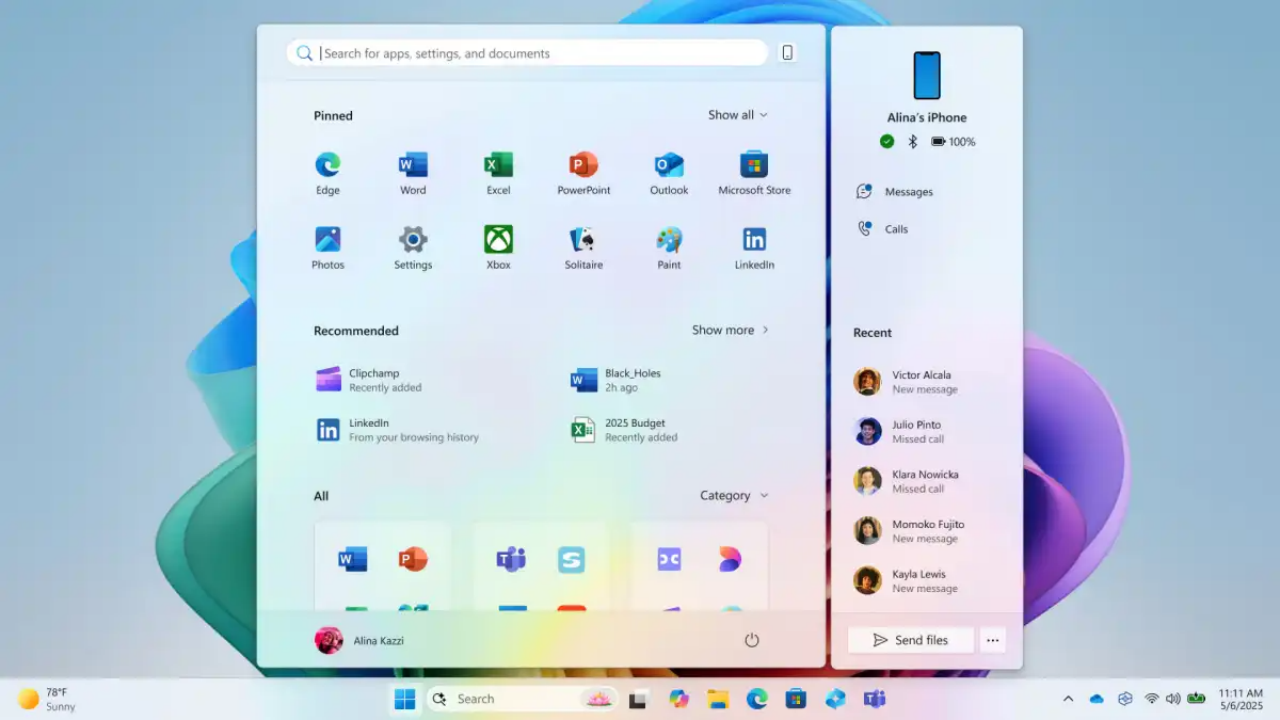
Microsoft states in the support document:
After installing the Windows 11 24H2 monthly cumulative update KB5062553 released in July 2025 or later on the device, various applications such as StartMenuExperienceHost, Search, System Settings, Taskbar, or File Explorer may experience issues.
The root cause of the problems is related to XAML components and package updates for Windows (including MicrosoftWindows.Client.CBS_cw5n1h2txyewy, Microsoft.UI.Xaml.CBS_8wekyb3d8bbwe, and MicrosoftWindows.Client.Core_cw5n1h2txyewy).
Potential issues users might encounter include but are not limited to:
- File Explorer process crashes
- Core system process shellhost.exe crashes
- StartMenuExperienceHost problems
- System Settings fails to launch completely silently without any prompt
- Application crashes when initializing XAML views
- Explorer running but no File Explorer window buttons visible on the taskbar
- Other XAML island views fail to initialize
- ImmersiveShell issues
- Start menu fails to launch, often showing critical errors
Microsoft has provided workarounds for temporarily resolving the issue. If users frequently experience the above problems, they can refer to the PowerShell commands provided in this support document for remediation: https://support.microsoft.com/en-us/topic/kb5072911-multiple-symptoms-occur-after-provisioning-a-pc-with-a-windows-11-version-24h2-update-d2d30684-4e2b-47f5-9899-a00a8e0acb09
Quoted original Windows official text
This article is transcoded by SimpRead, original at support.microsoft.com
Windows 11 version 24H2, all editions
Applies To
Windows 11 version 24H2, all editions
Summary
After provisioning a PC with a Windows 11, version 24H2 monthly cumulative update released on or after July 2025 (KB5062553), various apps such as StartMenuExperienceHost, Search, SystemSettings, Taskbar, or Explorer might experience difficulties.
This will occur for the following:
-
First-time user logon after a cumulative update was applied.
-
All user logons to a non-persistent OS installation such as a virtual desktop infrastructure (VDI) or equivalent as application packages must be installed each logon in such scenarios.
Common symptoms
Some common symptoms that might occur, include but are not limited to the following:
XAML components
These issues typically occur after updates to built-in dependency packages hosting XAML components, such as the following:
-
MicrosoftWindows.Client.CBS_cw5n1h2txyewy
-
Microsoft.UI.Xaml.CBS_8wekyb3d8bbwe
-
MicrosoftWindows.Client.Core_cw5n1h2txyewy
Shell components
These shell components may fail and report an on-screen error or silently fail to execute such as the following:
-
Explorer.exe
-
shellhost.exe
-
StartMenuExperienceHost
-
Application crashes when initializing the XAML views
-
Explorer running but no taskbar window.
-
other XAML island views fail to initialize.
-
ImmersiveShell
Other symptoms
Other symptoms include but are not limited to the following:
-
Explorer crashes
-
The Start menu fails to launch, often displaying a critical error message
-
System Settings. Start > Settings > System silently fails to launch
-
ShellHost.exe crashes
-
Application crashes when initializing XAML views
-
Explorer running but no taskbar window
-
other XAML island views fail to initialize
Cause
The applications have dependency on XAML packages that are not registering in time after installing the update.
Resolution
We are working on a resolution and will provide more information when it is available.
Workarounds
Manual registration of the missing packages
Register the missing packages in the user session and restart SiHost to allow Immersive Shell and related components to pick them up. To do this, run the following commands to register each of the missing packages:
Add-AppxPackage -Register -Path ‘C:\Windows\SystemApps\MicrosoftWindows.Client.CBS_cw5n1h2txyewy\appxmanifest.xml’ -DisableDevelopmentMode
Add-AppxPackage -Register -Path ‘C:\Windows\SystemApps\Microsoft.UI.Xaml.CBS_8wekyb3d8bbwe\appxmanifest.xml’ -DisableDevelopmentMode
Add-AppxPackage -Register -Path ‘C:\Windows\SystemApps\MicrosoftWindows.Client.Core_cw5n1h2txyewy\appxmanifest.xml’ -DisableDevelopmentMode
Run this sample PowerShell script on non-persistent OS installations
For non-persistent environments, a logon script approach remains the best option. Create a batch file wrapper to execute synchronously before Explorer launches.
Note This approach ensures the script runs synchronously, effectively blocking explorer.exe from launching prematurely until the required packages are fully provisioned.
@echo off
REM Register MicrosoftWindows.Client.CBS
powershell.exe -ExecutionPolicy Bypass -Command “Add-AppxPackage -Register -Path’C:\Windows\SystemApps\MicrosoftWindows.Client.CBS_cw5n1h2txyewy\appxmanifest.xml’-DisableDevelopmentMode”
REM Register Microsoft.UI.Xaml.CBS
powershell.exe -ExecutionPolicy Bypass -Command “Add-AppxPackage -Register -Path’C:\Windows\SystemApps\Microsoft.UI.Xaml.CBS_8wekyb3d8bbwe\appxmanifest.xml’-DisableDevelopmentMode”
REM Register MicrosoftWindows.Client.Core
powershell.exe -ExecutionPolicy Bypass -Command “Add-AppxPackage -Register -Path’C:\Windows\SystemApps\MicrosoftWindows.Client.Core_cw5n1h2txyewy\appxmanifest.xml’-DisableDevelopmentMode”
Need more help?
Want more options?
Explore subscription benefits, browse training courses, learn how to secure your device, and more.