笔记
一个朋友更新的win11还真碰上了
以前我还不信这么大厂的windows系统更新能出什么bug,有什么更新我都尽快装上
直到朋友电脑打开无响应,卡在桌面上,任务栏、资源管理器、系统设置全都打不开,我信了,再加上屡次遇到系统越性体验越卡的情况(新系统更多用不上的功能需要更多资源占用),我强烈建议所有系统,能不更新就不更新
原文链接
正文
据微软发布的支持文档 KB5072911 (仅为支持文档而非累积更新),微软承认 Windows 11 24H2 版从安装 2025 年 7 月更新 KB5062553 后就会出现多种症状,也就是只要用户从 2025 年 7 月 8 日更新过系统那就可能遇到这类问题。
从文档说明来看 Windows 11 核心功能几乎都有问题,尽管文档是针对 Windows 11 24H2 版的,但 Windows 11 25H2 与 24H2 共享相同的核心,因此无论是 24H2/25H2 版都可能遇到这些问题。
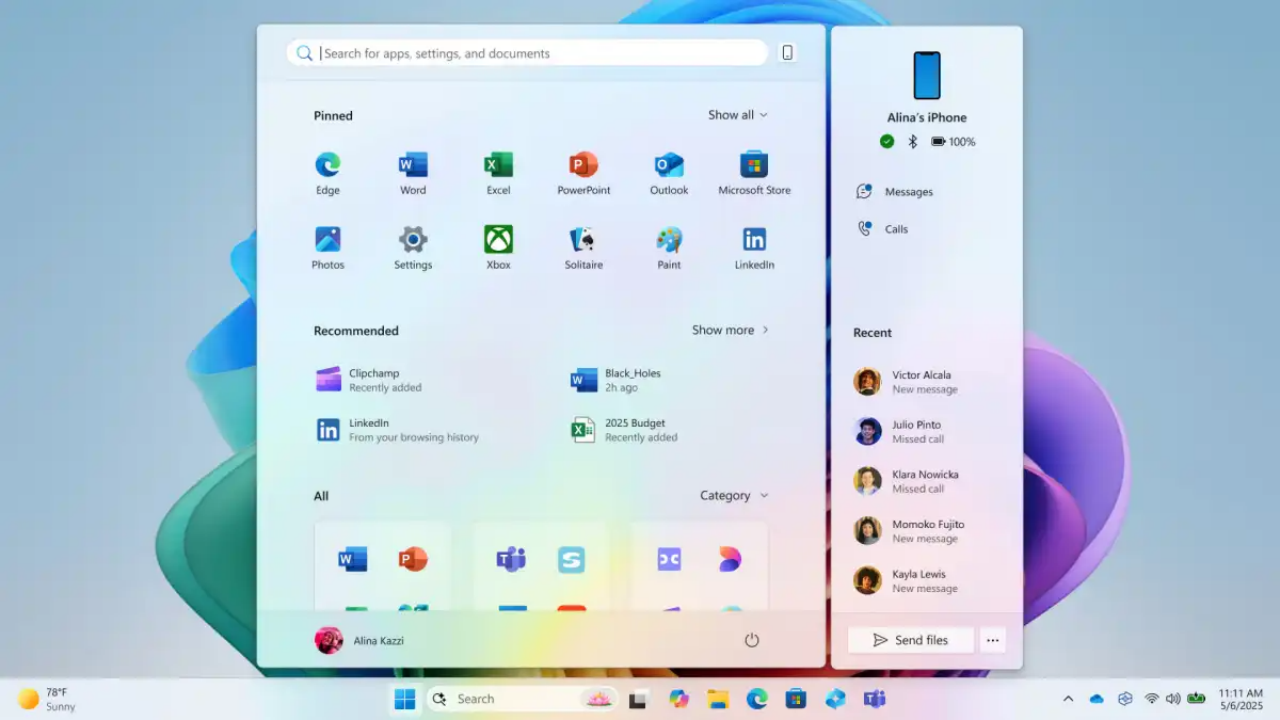
微软在支持文档中表示:
在设备上安装 2025 年 7 月或之后发布的 Windows 11 24H2 月度累积更新 KB5062553 后,StartMenuExperiencehost、搜索、系统设置、任务栏或资源管理器等各种应用程序都可能出现问题。
而引起问题的根本原因是适用于 Windows 的 XAML 组件和程序包更新 (包括 MicrosoftWindows.Client.CBS_cw5n1h2txyewy、Microsoft.UI.Xaml.CBS_8wekyb3d8bbwe 和 MicrosoftWindows.Client.Core_cw5n1h2txyewy)。
用户可能会遇到的情况包括但不限于以下:
- 资源管理器进程发生崩溃
- 系统核心进程 shellhost.exe 发生崩溃
- StartMenuExperienceHost 出现问题
- 系统设置启动失败并且完全静默没有任何提示
- 初始化 XAML 视图时应用程序崩溃
- 资源管理器正在运行,但任务栏上看不到资源管理器窗口按钮
- 其他 XAML 岛视图初始化失败
- Immersiveshell (沉浸式 shell) 问题
- 开始菜单无法启动,通常会显示严重错误
目前微软已经提供变通方法用于临时解决问题,如果用户频繁遇到以上问题可以参考这篇支持文档提供的 PowerShell 命令执行操作:KB5072911: Multiple symptoms occur after provisioning a PC with a Windows 11, version 24H2 update - Microsoft Support
上文引用的windows官方原文
本文由 简悦 SimpRead 转码, 原文地址 support.microsoft.com
Windows 11 version 24H2, all editions
Applies To
Windows 11 version 24H2, all editions
Summary
After provisioning a PC with a Windows 11, version 24H2 monthly cumulative update released on or after July 2025 (KB5062553), various apps such as StartMenuExperiencehost, Search, SystemSettings, Taskbar or Explorer might experience difficulties.
This will occur for the following:
-
First time user logon after a cumulative update was applied.
-
All user logons to a non-persistent OS installation such as a virtual desktop infrastructure (VDI) or equivalent as application packages must be installed each logon in such scenarios.
Common symptoms
Some common symptoms that might occur, include but are not limited to the following:
XAML components
These issues typically occur after updates to built-in dependency packages hosting XAML components, such as the following:
-
MicrosoftWindows.Client.CBS_cw5n1h2txyewy
-
Microsoft.UI.Xaml.CBS_8wekyb3d8bbwe
-
MicrosoftWindows.Client.Core_cw5n1h2txyewy
Shell components
These shell components may fail and report an on-screen error or silently fail to execute such as the following:
-
Explorer.exe
-
shelhost.exe
-
StartMenuExperienceHost
-
Application crashes when initializing the XAML views
-
Explorer running but no taskbar window.
-
other XAML island views fail to initialize.
-
ImmersiveShell
Other symptoms
Other symptoms include but are not limited to the following:
-
Explorer crashes
-
The Start menu fails to launch, often displaying a critical error message
-
System Settings. Start > Settings > System silently fails to launch
-
ShellHost.exe crashes
-
Application crashes when initializing XAML views
-
Explorer running but no taskbar window
-
other XAML island views fail to initialize
Cause
The applications have dependency on XAML packages that are not registering in time after installing the update.
Resolution
We are working on a resolution and will provide more information when it is available.
Workarounds
Manual registration of the missing packages
Register the missing packages in the user session and restart SiHost to allow Immersive Shell and related components to pick them up. To do this, run the following commands to register each of the missing packages:
Add-AppxPackage -Register -Path ‘C:\Windows\SystemApps\MicrosoftWindows.Client.CBS_cw5n1h2txyewy\appxmanifest.xml’ -DisableDevelopmentMode
Add-AppxPackage -Register -Path ‘C:\Windows\SystemApps\Microsoft.UI.Xaml.CBS_8wekyb3d8bbwe\appxmanifest.xml’ -DisableDevelopmentMode
Add-AppxPackage -Register -Path ‘C:\Windows\SystemApps\MicrosoftWindows.Client.Core_cw5n1h2txyewy\appxmanifest.xml’ -DisableDevelopmentMode
Run this sample PowerShell script on non-persistent OS installations
For non-persistent environments, a logon script approach remains the best option. Create a batch file wrapper to execute synchronously before Explorer launches.
Note This approach ensures the script runs synchronously, effectively blocking explorer.exe from launching prematurely until the required packages are fully provisioned.
@echo off
REM Register MicrosoftWindows.Client.CBS
powershell.exe -ExecutionPolicy Bypass -Command “Add-AppxPackage -Register -Path’C:\Windows\SystemApps\MicrosoftWindows.Client.CBS_cw5n1h2txyewy\appxmanifest.xml’-DisableDevelopmentMode”
REM Register Microsoft.UI.Xaml.CBS
powershell.exe -ExecutionPolicy Bypass -Command “Add-AppxPackage -Register -Path’C:\Windows\SystemApps\Microsoft.UI.Xaml.CBS_8wekyb3d8bbwe\appxmanifest.xml’-DisableDevelopmentMode”
REM Register MicrosoftWindows.Client.Core
powershell.exe -ExecutionPolicy Bypass -Command “Add-AppxPackage -Register -Path’C:\Windows\SystemApps\MicrosoftWindows.Client.Core_cw5n1h2txyewy\appxmanifest.xml’-DisableDevelopmentMode”
Need more help?
Want more options?
Explore subscription benefits, browse training courses, learn how to secure your device, and more.