This article is converted by 简悦 SimpRead, original address www.hawu.me
Rime is an input method framework, not a narrowly defined “input method”, but an algorithm framework that abstracts the common features of various input methods.
Basic Concepts
Rime is an input method framework, not a narrowly defined “input method”, but an algorithm framework that abstracts the commonalities of various input methods. Through different configuration files, Rime can support multiple input schemes (Schema), which is the so-called “input method” in the narrow sense. For example, MingYue Pinyin input method is an input scheme that comes with Rime. There are also others like Clover input method (https://github.com/fkxxyz/rime-cloverpinyin) and so on.
Squirrel, Weasel, and Zhongzhouyun are Rime implementations on different operating systems.
Rime’s configuration and dictionary files are in text format for easy modification. All files require UTF-8 encoding.
In configuration files, lines beginning with # are comments.
Directory of Configuration Files
Rime has two important configuration directories:
Shared Configuration Directory
- 【Zhongzhouyun】
/usr/share/rime-data/ - 【Weasel】
"InstallationDirectory\\data" - 【Squirrel】
"/Library/Input Methods/Squirrel.app/Contents/SharedSupport/"
PS: Actually should be called the “program configuration directory”
User Configuration Directory
- 【Zhongzhouyun】
~/.config/ibus/rime/(for versions below 0.9.1 it is~/.ibus/rime/) - 【Weasel】
%APPDATA%\\Rime - 【Squirrel】
~/Library/Rime/
The shared directory contains Rime’s preset configurations, and when the software version is updated, files in this directory will also be automatically updated. Therefore, please do not modify files under this directory.
The user directory contains user-customized configuration files. Any modifications we make are placed in the user directory.
For Squirrel, the user directory initially contains only the following files.
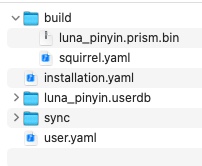
The installation.yaml file records the current version information of the Rime program. One field, installation_id, is used to uniquely identify the current Rime program during user dictionary synchronization.
The user.yaml file records the user’s usage status, such as the timestamp of the last “rebuild”, and the last selected input scheme.
The build directory contains files generated after each “rebuild”. This includes compiled dictionary database “.bin” files and various yaml configuration files that are merged with custom configurations.
The xxx.userdb directory contains the user dictionary for the corresponding input scheme. It includes dynamically updated information such as selected phrases, word frequencies, etc.
The sync directory is used for user data synchronization. Each sync/installation_id directory corresponds to the user data of the Rime program on different computers (if you have installed Rime on multiple computers and set up synchronization). According to the author, the synchronization principle of Rime’s user dictionary is:
Manually copying from another computer or automatic synchronization from the cloud ⇒ sync/*/*.userdb.txt ⇒ merge to local *.userdb ⇒ export to sync/<insta...llation_id>/*.userdb.txt`.
About Debugging
Rime’s log directories are as follows:
- 【Zhōngzhōuyùn】
/tmp/rime.ibus.* - 【Weasel】
%TEMP%\rime.weasel.* - 【Squirrel】
$TMPDIR/rime.squirrel.* - Early versions
User config directory/rime.log
PS: Right after installing my Squirrel, the directory files were always empty. Even deliberately misconfiguring the config file did not produce any logs. Only after I force-quit the Squirrel process in macOS’s Activity Monitor and restarted Squirrel did it start outputting logs properly. =.=
Modify Configuration
If you want to modify the configuration, please do not directly modify the original xxx.yaml files, but instead create a new xxx.custom.yaml file, where xxx is the same as the original filename.
When modifying scheme definition files, the new file should be named schema_id.custom.yaml, without adding schema like ~schema_id.schema.custom.yaml~.
In .custom.yaml files, any configuration items to be modified need to be placed under the root node patch.
Each time you modify the configuration, you need to select “Redeploy” in Squirrel’s menu for changes to take effect.

Modify Candidate Word Count
Rime defaults to showing 5 candidate words per page. We can change this to any number between 1 and 9.
Create a new default.custom.yaml file in your user directory (default.yaml can be found in the shared config directory), and write the following:
patch:
  "menu/page_size": 9   # The field name can be with or without quotes
Or like this:
patch:
  menu:
    page_size: 8
# Note that this will overwrite the entire menu field. Fortunately, by default menu only contains the page_size field at the next level; if there are multiple subfields, please don't use this method.
Then select “Redeploy” from the menu to apply the new settings.
The above default file modifies the candidate count for all input schemes. If you want to adjust only a specific scheme, for example the Luna Pinyin scheme, just create a luna_pinyin.custom.yaml in your user directory with the same content and redeploy. (Note, changes to input scheme definition files xxx.schema.yaml only require the new file name to be xxx.custom.yaml, no need to add schema, like xxx.schema.custom.yaml.)
Modify Scheme Menu
By default, Squirrel uses the hotkey ctrl + or the F4 key to bring up the scheme menu.
In the scheme menu list that pops up:
1 indicates the currently used input scheme.
2 indicates the current input scheme’s status, including Chinese/English, half-width/full-width, Simplified/Traditional Chinese characters, Chinese punctuation / English punctuation. (Refer to the following switches section for toggling statuses.)
3 and subsequent options indicate other selectable input schemes.
You can find the scheme menu definition in the shared config directory default.yaml:
schema_list:
  - schema: luna_pinyin            # Luna Pinyin
  - schema: luna_pinyin_simp       # Luna Pinyin - Simplified
  - schema: luna_pinyin_fluency    # Luna Pinyin - Sentence Flow
  - schema: bopomofo               # Zhuyin input method
  - schema: bopomofo_tw            # Zhuyin input method - Taiwan Traditional
  - schema: cangjie5               # Cangjie 5th generation input method
  - schema: stroke                 # Stroke input method (not Wubi, but hspnz represent horizontal, vertical, left-falling, right-falling, and hook strokes. It's the traditional stroke code.)
  - schema: terra_pinyin           # Terra Pinyin
If you want to remove rarely used schemes, you can override this configuration in a newly created default.custom.yaml:
patch:
  schema_list:
    - schema: luna_pinyin
    - schema: luna_pinyin_simp
    - schema: terra_pinyin
Modify Squirrel Appearance (Color Scheme / Horizontal Layout / Font)
Squirrel’s appearance config file is squirrel.yaml (Weasel’s appearance config file is weasel.yaml). So you need to create a squirrel.custom.yaml in your user config directory:
patch:
  # Modify program appearance
  style:
    color_scheme: solarized_dark    # Choose color theme (multiple themes predefined in squirrel.yaml)
    font_face: Hei                  # Candidate font (you can look up using macOS's Font Book.app)
    font_point: 18                  # Candidate font size
    label_font_face: Bradley Hand   # Candidate label font
    label_font_size: 18             # Candidate label font size
    horizontal: true                # Whether candidates are arranged horizontally
    inline_preedit: false           # true embeds preedit letters into the target program window; false shows preedit letters in the IME window
Multiple color themes are predefined in squirrel.yaml. You can select a theme using style/color_scheme, then set other style configurations.
Note (not sure if this is a bug), if a property is defined in the theme, setting style/<property> cannot override the property of the same name in the theme. You must use the following way:
patch:
  style/color_scheme: apathy
  # style/horizontal: false                       # This cannot override the pre-defined theme apathy's config
  preset_color_schemes/apathy/horizontal: false   # This line can override theme apathy's config
The effect of style/inline_preedit is shown as below:
Eliminate Square Question Marks (Rare Characters)
Rime’s default dictionaries contain many rare characters that the system cannot display. Since macOS’s system fonts do not include these rare characters, they appear as shown below.
Solution 1
The solution is to install a more complete font, e.g., the “Garden Mincho Font”. After installing the font, theoretically no config changes are needed, and the system will automatically find usable fonts for these rare characters.
Solution 2
Another solution is to use a Lua script custom filter that filters out rare characters from the candidate list. Refer to the “[Lua extension script]” section below.
~One solution is to remove these rare characters from Rime’s lower-level OpenCC, see: https://github.com/funway/rime-rare-word. (I tested it; it doesn’t remove thoroughly enough, leaving many rare characters not recognized by the native font.)~
~There is also a method online using native filters (cjk_minifier, charset_filter) to filter rare characters, but looking at Rime’s issues on GitHub, it seems new versions no longer support this. Lua scripts must be written manually.~
A more thorough method is to use completely custom dictionaries and not import Rime’s default dictionaries.
Default Enable English Input in Specific Programs
Refer directly to the official documentation here: https://github.com/rime/home/wiki/CustomizationGuide# 在特定程序裏關閉中文輸入
Getting to Know Input Schemes
An input scheme must include a “scheme definition” file and a “dictionary” file.
Scheme Definition File (.schema.yaml)
Scheme definition file, as <schema_id>.schema.yamlformat for naming. Let's take a look at the presetluna_pinyin.schema.yaml` file, which is the schema file for the Rime’s built-in Luna Pinyin input method.
The beginning of the file looks like this:
schema:
  schema_id: luna_pinyin
  name: Luna Pinyin
  version: '0.26'
  author:
    - Fozhen <ch```en.sst@gmail.com>
  description: |
    The default Pinyin input schema of Rime.
schema/schema_id is the unique identifier representing this input schema in Rime.
schema/name is the name of the input schema and also the name displayed in the Rime schema menu.
schema/version is the version number of the schema.
schema/author is the list of authors, and schema/description is a description of the input schema.
Engine and Components
Next is the configuration related to the engine: https://github.com/rime/home/wiki/RimeWithSchemata#%E8%BC%B8%E5%85%A5%E6%B3%95%E5%BC%95%E6%93%8E%E8%88%87%E5%8A%9F%E8%83%BD%E7%B5%84%E4%BB%B6
++++++++++++++++++++++++++ The following is excerpted from https://jiz4oh.com/2020/10/how-to-use-rime/#engine
The core principle of Rime is to process user input through four major components under the engine, which are:
ProcessorsSegmentorsTranslatorsFilters
The entire process is as follows:
- Each
processorunderProcessorssequentially handles user input (i.e., which keyboard key is pressed), responding to keys according to preset rules:- No processing: Rime takes no action on the key and uses the system default operation.
- Special operations: such as
Enterto commit text, switching input schemas, combination keys, etc. - Input candidate: The key corresponds to characters to be converted into text, e.g.,
123abc, storing these characters into the input code context.
- When the input code context changes, the
segmentorunderSegmentorssegments the current input code according to format and labels each segment. For example, in the [Luna Pinyin] schema, input2012nianis segmented into three code segments with tags:2012(taggednumber),nian(taggedabc), (taggedpunct). - As the name suggests,
Translatorsconvert coded segments into characters. Some key points:- The translation targets are individual divided code segments.
- A particular
translatorcomponent often only translates code segments with specific tags. - The translation result may contain multiple entries, each becoming a candidate presented to the user.
- Code segments may be translated by multiple
translators separately, with results merged into one candidate list by certain rules. - The candidate’s corresponding code may not cover the entire code segment. For example, when typing a phrase in Pinyin, the phrase is followed by single-character candidates.
- After translation,
Filtersprocess all translation results, e.g., removing duplicates.
The core principle of Rime is to process user input through four major components under the engine, which are:
ProcessorsSegmentorsTranslatorsFilters
The entire process is as described above:
- Each
processorunderProcessorssequentially handles user input (i.e., which keyboard key is pressed), responding to keys according to preset rules:- No processing: Rime takes no action on the key and uses the system default operation.
- Special operations: such as
Enterto commit text, switching input schemas, combination keys, etc. - Input candidate: The key corresponds to characters to be converted into text, e.g.,
123abc, storing these characters into the input code context.
- When the input code context changes, the
segmentorunderSegmentorssegments the current input code according to format and labels each segment. For example, in the [Luna Pinyin] schema, input2012nianis segmented into three code segments with tags:2012(taggednumber),nian(taggedabc), (taggedpunct). - As the name suggests,
Translatorsconvert coded segments into characters. Some key points:- The translation targets are individual divided code segments.
- A particular
translatorcomponent often only translates code segments with specific tags. - The translation result may contain multiple entries, each becoming a candidate presented to the user.
- Code segments may be translated by multiple
translators separately, with results merged into one candidate list by certain rules. - The candidate’s corresponding code may not cover the entire code segment. For example, when typing a phrase in Pinyin, the phrase is followed by single-character candidates.
- After translation,
Filtersprocess all translation results, e.g., removing duplicates.
+++++++++++++++++++++++++++++ The above is excerpted
Dictionary File (.dict.yaml)
Rime’s dictionary files are named with the format <dictionary_name>.dict.yaml. In these files, only the initial basic information part is in YAML format. Taking Luna Pinyin’s dictionary as an example, its file name is luna_pinyin.dict.yaml.
# Note that the YAML document start and end are marked by --- and ...
# The parts after ... are not parsed as YAML.

---
name: luna_pinyin
version: "0.9"
sort: by_weight
use_preset_vocabulary: true
...
name: the dictionary name. It can be the same as the input schema identifier (schema_id) or different.
version: dictionary version.
sort: entry sorting method; by_weight means sort by weight descending, original means sort by their order in the code table. Note this only defines the default ordering of candidates. The highest priority in sorting after usage is the user’s selection frequency.
use_preset_vocabulary: denotes whether to import the preset “八股文” vocabulary list (the vocabulary file is under the shared configuration directory as essay.txt). If you want a more streamlined dictionary, you can choose not to import this vocabulary.
After these basic info fields, there is a “code table”. The code table shows the correspondence between dictionary entries (single characters and phrases) and their input codes. For Pinyin input methods, this table maps each Chinese character or phrase to their Pinyin.
# Single characters
你   ni
我   wo
的   de  99%
的   di  1%
地   de  10%  # indicates that in usage, "地" is pronounced de with 10% frequency
地   di  90%  # indicates that in usage, "地" is pronounced di with 90% frequency

# Phrases
你我            # automatically encoded as "ni wo"
我的            # automatically encoded as "wo de", but not "wo di"
好好地          # automatically encoded as "hao hao di" and "hao hao de"
天地  tian di
目的地 mu di di

周一  workday    # default weight 1
周二  workday 5  # if sorting by_weight is used, the candidate order for "workday" should be "周二 周三 周一"
周三  workday 3  # these three "workday" are mere examples—it's best not to put English codes in a Pinyin dictionary as it might affect syllable segmentation
Each line in the code table represents a “entry code (weight)” correspondence. The third weight field is optional.
Note: The whitespace between fields must be a “Tab” character, not spaces! (Beware of your editor auto-converting tabs to spaces)
Also note that for phrase codes, the complete Pinyin for each character should be used, separated by spaces between the syllables. This facilitates the engine/segmentors of Pinyin input schemas to segment syllables. Use of Pinyin abbreviations or English words is discouraged, as it can interfere with syllable segmentation. This will be explained in detail in the later “Extending Dictionaries” section.
As shown in the figure below, a gray dash represents a tab character, and gray dots represent spaces:
Regarding the third field:
- If it is a non-negative integer, it represents the weight of this entry relative to the code. When multiple entries exist for one code, sorting by_weight uses this weight descending.
- If it is a percentage (usually appearing after single characters), it denotes the usage frequency of this pronunciation for multi-pronunciation characters. This frequency is used in the automatic encoding for phrases.
If a phrase meets both conditions below, the encoding field can be omitted, and Rime will auto-encode it during compilation:
- Each character in the phrase has an encoding defined.
- The phrase contains no multi-pronunciation characters; or the pronunciation used in the phrase for a multi-pronunciation character has a frequency above 5% in the single character pronunciation frequencies.
For example, in the examples above, “好好地” does not explicitly define encoding, so during compilation, it auto-encodes as “hao hao de” and “hao hao di”. For “我的”, although “的” is multi-pronunciation, the pronunciation “di” is only 1%, so auto-encoding for “我的” only uses “wo de”.
Compiling Input Schemas
The process of “re-deploying” the input schema files and dictionary files to Rime is a compilation.
For query efficiency, the input method does not load the text YAML dictionary files during runtime but loads the compiled binary .bin files generated from the dictionary files.
In the shared directory, the build folder contains the precompiled .bin files released with the program. In the user directory, the build folder stores .bin files generated after clicking “Re-deploy”.
The binary files produced when compiling an input schema include:
- The “Rime Prism” file:
<schema_id>.prism.bin - The “Rime solid-state dictionary”:
<schema_id>.table.bin - The “Rime reverse dictionary”:
<schema_id>.reverse.bin
The .table.bin file directly comes from the dictionary source .dict.yaml file.
The .prism.bin file combines the dictionary source and the schema’s spelling operation rules to generate the binary file. (My guess: it generates the correspondence between original syllables and replacable syllables according to the syllable encodings defined in the source dictionary and the spelling operation rules. For example, original syllable “lue” plus spelling operation rule derive/^([nl])ve$/$1ue/ generates the mapping “lve” → “lue”. So when the user inputs “lve”, it can find the character for “lue” accordingly.)
The .reverse.bin file is the binary reverse dictionary. Reverse lookup, for example in Luna Pinyin, uses the number of strokes for reverse lookup. When you do not know the Pinyin for a character, you can press and input the character’s stroke count, and the candidate list will show “candidate + Luna Pinyin code”.
When compiling the input schema, the Rime program performs the following:
- Merges the user’s custom content into the original input schema definition and generates a new
.schema.yamlin the user’s configuration directorybuildfolder; - Records encodings of single characters and phrases based on the input schema’s dictionary files;
- Auto-annotates pinyin for phrases without provided encodings in the dictionary file;
- Builds an index for entries (phrases or characters) by encoding—the Rime solid-state dictionary;
- Builds an index for codes by entries—the Rime reverse dictionary;
- Builds the Rime Prism according to the syllable table and the spelling operation rules defined in the schema.
Spelling Operations
Without spelling operations, users must input codes strictly exactly as defined in the dictionary to get the corresponding candidate words.
Spelling operations use several predefined “operators” combined with regular expressions to replace one code with another during the compilation that generates .prism.bin files, achieving intelligent error correction, fuzzy sound matching, etc.
Detailed rules can be found at: https://github.com/rime/home/wiki/SpellingAlgebra
As an example, take the phrase “只是” whose code should be “zhishi”.
Now, we modify the luna_pinyin.custom.yaml file to include the following configuration:
patch:
  speller/algebra:
    # Yes, empty here. This will override (clear) the original spelling operation config
After redeployment, testing will show:
For these two characters, inputting “zi” will not find “只”, and inputting “si” won’t find “是”. Only full input “zh” or “zhi” can find “只”, indicating fuzzy sound lookup is not supported currently.
For the phrase, inputting “zhsh” will not find “只是”. You must input “zhishi” fully, indicating abbreviated phrase splitting is not supported now. (By abbreviated input, the author means looking up all characters starting with the initial consonant.)
Now modify the configuration file above again:
patch:
  speller/algebra:
    - abbrev/^([a-z]).+$/$1/
    - abbrev/^([zcs]h).+$/$1/
These two lines mean that all Pinyin codes starting with [a-z] and [zcs]h in the original dictionary are collapsed to [a-z] or [zcs]h respectively. In other words, you can lookup all characters by their initial consonants. (However, Rime already supports abbreviated input for single characters without this rule, so I think this rule is actually used for multi-syllable phrase splitting.)
After redeployment, inputting “zhsh” can finally show candidates.
These two rules are already defined in the original luna_pinyin.schema.yaml file.
Now change the spelling operation rules:
patch:
  speller/algebra:
    - derive/^([zcs])h/$1/
This rule means (when generating the prism file), any code starting with [zcs]h can be equivalently replaced with [zcs]. So when you input “zi”, it retrieves all characters corresponding to “zi” and “zhi”; inputting “zhi” still retrieves only those matching “zhi”.
If you want to list “zi” characters also when inputting “zhi”, add one more rule: derive/^([zcs])([^h])/$1h$2/.
These two rules achieve fuzzy matching between [zcs] and [zcs]h.
Fuzzy Sound Support
Based on the above spelling operations, we now formally modify the luna_pinyin.custom.yaml file to enable fuzzy sound lookup for Luna Pinyin. (Since Luna Pinyin’s original schema already defines abbreviation and auto-correction spelling operation rules, here we use /+ to merge new rules with the original, not replace them.)
patch:
  speller/algebra/+:    # "/+" means append, not replace the original config
    # The following two lines implement fuzzy matching between z and zh, c and ch, s and sh
    - derive/^([zcs])h/$1/
    - derive/^([zcs])([^h])/$1h$2/
    # The following two lines implement fuzzy matching between n and l
    - derive/^n/l/
    - derive/^l/n/
    # The following two lines implement fuzzy matching between an and ang, en and eng, in and ing
    - derive/([aei])n$/$1ng/
    - derive/([aei])ng$/$1n/
ps: Actually, in practice, too much fuzziness can feel uncomfortable.
Spelling Operation Debugger
The official also provides a Spelling Algebra Debugger.
Modifying Punctuation
macOS’s built-in Pinyin input method directly inputs the symbol “/” when pressing the / key on the keyboard. For MouseTail (Rime’s Luna Pinyin), its default config shows multiple punctuation candidates when pressing /:
We can find the Luna Pinyin schema configuration file luna_pinyin.schema.yaml in the shared configuration directory.
punctuator:
  full_shape:
    # ... omitted ...
    "/": ["/", "÷"]
  half_shape:
    "/": ["、", "、", "/", "/", "÷"]
These two configs mean:
In full-width mode, pressing / prompts full-width slash “/” and division sign “÷”.
In half-width mode, pressing / prompts full-width enumeration comma “、”, half-width enumeration comma “、”, half-width slash /, full-width slash /, and division sign ÷.
The difference in symbol widths for full-width and half-width can be compared below:
To directly output the enumeration comma “、” when pressing /, you can create a new luna_pinyin.custom.yaml in the user config directory with:
patch:
  punctuator/full_shape:
    "/" : "、"
  punctuator/half_shape:
    "/" : "、"
These two lines in luna_pinyin.custom.yaml override the original config in luna_pinyin.schema.yaml.
Input Method Status Switching
Now let’s take a look at Luna Pinyin’s schema definition file luna_pinyin.schema.yaml, which contains the following definition:
  - name: ascii_mode
    reset: 0
    states: [Chinese, Western]
  - name: full_shape
    states: [Half-width, Full-width]
  - name: simplification
    states: [Traditional, Simplified]
  - name: ascii_punct
    states: [。,, .,]
switches represents the states that can be toggled in this input schema. Rime will remember the state of the input schema, so that when switching input methods, these state values are not lost.
Among them, name is the variable name used to identify a state. This state variable is actually shared globally in Rime, which means if both the Luna Pinyin input schema and the Terra Pinyin input schema use the same state variable “simplification” to identify the Simplified/Traditional state, then after switching Luna Pinyin to Simplified output state, switching to Terra Pinyin input method will also maintain the Simplified output.
states is the state information displayed to the user for toggling. As shown in the figure below:
reset tells Rime not to remember the state value, and to reset this value every time the input schema is switched to; optional values are “0 or 1”.
These state variables will be captured by engine/translators or engine/filters and will modify the candidate list according to the value of the state variable. For example, the filter simplifier listens to the “simplification” state variable by default to modify the Simplified/Traditional candidates.
Defining Simplified Chinese Output
If you just want to switch from Traditional to Simplified, just press the combination key
Ctrl+\
`Ctrl+`` and choose “漢字→汉字” from the schema menu.
Rime’s preset dictionaries use Traditional characters, because Traditional Chinese characters cover more characters than Simplified Chinese characters, allowing higher accuracy in “Traditional→Simplified” conversion.
If you want Luna Pinyin to output Simplified Chinese by default, you can add a reset attribute to its “simplification” state variable in the configuration file. Modify our luna_pinyin.custom.yaml file:
patch:
  "switches/@2/reset": 1  # This means resetting the second element in the switches list (i.e., the simplification variable) to 1, which corresponds to Simplified Chinese characters.
After redeployment, every time you switch to the Luna Pinyin input method, it will automatically switch to Simplified output.
Differences between Luna Pinyin Simplified Version and Original Version
Rime presets an input schema called “Luna Pinyin · Simplified”. From its name, you can see it is derived from the original “Luna Pinyin”. Let’s look at its schema definition file luna_pinyin_simp.schema.yaml:
# Indicates an inclusion of the root node of the original configuration file luna_pinyin.schema.yaml (i.e., all configurations)
__include: luna_pinyin.schema:/

schema:
  schema_id: luna_pinyin_simp  # schema_id must differ from the original version
  # ...omitted...

switches:
    # ...omitted...
  - name: zh_simp              # New state variable to indicate Simplified/Traditional status
    reset: 1                  # Default reset to 1, i.e., Simplified Chinese characters
    states: [Traditional, Simplified]
  # ...omitted...

translator:
  prism: luna_pinyin_simp      # Use a different prism file than the original (dictionary file is the same as original)

simplifier:
  option_name: zh_simp         # Pass zh_simp state variable to the simplifier filter instead of the default simplification variable

key_binder:
  bindings/+:
    - { when: always, accept: Control+Shift+4, toggle: zh_simp }
    - { when: always, accept: Control+Shift+dollar, toggle: zh_simp }
__include is not part of the native YAML syntax, but an extension by Rime (https://github.com/rime/home/wiki/Configuration#語法). It can be used to include other nodes in the same file or include nodes from other files. Because the original configuration is included, configuration items not defined afterwards inherit from the original.
The dictionary file inherits from the original, but uses its own prism file. (I do not fully understand why this is done; I compared the two prism files generated by the Simplified and original versions, and except for two bytes difference in the header, the rest are identical.)
The Simplified/Traditional state variable in switches is modified, and a new variable name is used to avoid affecting other input schemas that use simplification as the state variable for Simplified/Traditional status. Because a new variable name is used, we need to pass the new state variable to the simplifier filter configuration later.
Two new hotkeys are added in key_binder to toggle the Simplified/Traditional status.
That’s all! Other configurations inherit from the original Luna Pinyin.
Expanding Dictionaries
First, create a new dictionary file luna_pinyin.extended.dict.yaml. Of course, you can choose another filename, as long as the filename matches the name field defined in the dictionary. For example, you can also call it my_first.dict.yaml.
---
name: luna_pinyin.extended    # You could also call it my_first (if your dictionary filename is my_first.dict.yaml)
version: "2020.06.26"
sort: by_weight
use_preset_vocabulary: true

# Import other dictionaries here
import_tables:
  - luna_pinyin    # Import the original Luna Pinyin dictionary
...

# Below is the custom code table
# Notes:
#   1. Use Traditional characters (because Luna Pinyin defaults to Traditional, then converted to Simplified by OpenCC)
#   2. The three fields "entry, code, weight" must be separated by tabs

孖   ma
哈嗚
王富貴

# emoji
💅   mei jia 500
😄   kai xin 100
😂   ku xiao 100

# Emoticons
(๑‾ ꇴ ‾๑)   ke ai   100
⁽⁽٩(๑˃̶͈̀ ᴗ ˂̶͈́)۶⁾⁾    hui shou    100
The import_tables field is very useful: through it, you can import other dictionaries, such as dictionary files downloaded online (in Rime format).
Next, an important step: modify the schema definition file luna_pinyin.custom.yaml. Append the following:
patch:
  # Use the custom extended dictionary file
  translator/dictionary: luna_pinyin.extended
Finally, after redeployment, we can use our extended dictionary!
Do Not Use English Words as Pinyin Dictionary Codes
In Rime’s engine/segmentors stage, the input code is segmented. For Pinyin input methods, this means splitting the user-input code into possible syllables. If English word codes are mixed into a Pinyin dictionary file, it may affect the syllable segmentation.
For example, for the user input code “mom”, since the default dictionary does not have that code, syllable segmentation begins to guess possible matching words.
If we add the entry “妈妈 mom” to the extended dictionary, then Rime will stop segmenting “mom” and directly output “妈妈”.
Do Not Use Pinyin Abbreviations as Pinyin Dictionary Codes
Same principle as the English word “mom”. If you use Pinyin abbreviations as codes in the dictionary file, it also affects segmentation of user input.
For example, for “msd”, the default input method candidate list displays as follows:
But if you add the line “马上到 msd” to the dictionary file, Rime will stop segmenting “msd” and directly output “马上到”.
This is not what we want. We hope when inputting “msd”, the candidate list includes both “马上到” and other words like “魔术队” etc.
Custom Phrases
To achieve the above “mom” → “妈妈”, “msd” → “马上到” and not affect Pinyin syllable segmentation, you can use Rime’s custom phrase feature. (The official documentation is really poor, never mentioning this feature, no wonder people complain Rime is hard to learn.)
Create a new file custom_phrase.txt in the user configuration directory.
# Same as dictionary file, fields separated by tab
# Order: text, code, weight (determines order of candidates with same code; optional)
Rime    rime    3
鼠鬚管 rime    2
妈妈  mom
马上到 msd
The filename custom_phrase.txt is the default written in Luna Pinyin’s schema definition. If you want another filename, e.g., my_phrase.txt, modify the schema definition with custom_phrase/user_dict: my_phrase. But the custom phrase file must have .txt extension.
Custom phrases are not compiled into solid dictionaries (.table.bin) or prism files (.prism.bin), nor written into the realtime user dictionary (.userdb). Instead, they are read into memory on every redeployment. So avoid putting too many entries in custom phrases (though a few tens of thousands is actually fine).
Custom phrases have the highest priority in the candidate list and are fixed at the top of the list (which I don’t like much; macOS native input methods allow adjusting priorities). So custom phrases have a trick: they can fix candidate order, for example, to always have “在” at first when inputting “z”.
Because custom phrases are independent of the dictionary, avoid defining Pinyin abbreviations there; otherwise, if we define “鼠须管 sxg” in custom phrases, then choose “鼠须管” by inputting “shuxuguan”, this phrase will be written into the user dictionary. Then, when next inputting the abbreviation “sxg”, two “鼠须管” candidates appear: one from custom phrases and one from user dictionary.
Advanced: Lua Extension Scripts
Since version 0.12.0, Rime added the librime-lua plugin (XiaoLangHao from version 0.14.0), allowing users to write their engine components (processors, segmentors, translators, filters) using Lua scripts to customize desired functions.
Rime loads Lua scripts by default from: user_configuration_directory/rime.lua.
Auto-Translate Date
We want that when inputting the code “date”, the candidate list automatically shows the current date. This requires Lua scripting.
Create a Lua script rime.lua in the user configuration directory:
-- Double hyphen denotes a Lua comment

-- Translator: auto convert date/time
function date_translator(input, seg)
   if (input == "date") then
      --- Candidate(type, start, end, text, comment)
      yield(Candidate("date", seg.start, seg._end, os.date("%Y年%m月%d日"), "Date"))
   end
end
Then modify the schema definition file luna_pinyin.custom.yaml to add this Lua translator in the translators field:
patch:
  # Add lua script translator
  engine/translators/+:
    - lua_translator@date_translator
After redeployment, when inputting “date”, you’ll see the automatically translated current date.
More Features
Please refer to https://github.com/hchunhui/librime-lua/blob/master/sample/rime.lua
For example, a filter to promote single characters in the candidate list: single_char_filter
For example, a filter to auto reverse-lookup Terra Pinyin in the candidate list: reverse_lookup_filter (make sure build/terra_pinyin.reverse.bin exists in user config dir)
For example, a filter to filter out rare characters in candidates: charset_filter
Advanced: Schema Configuration Details
Reference: https://github.com/LEOYoon-Tsaw/Rime_collections/blob/master/Rime_description.md
After every redeployment, the final generated schema definition file (merged original and custom config) .schema.yaml is located in the build folder under user configuration directory. You can open it to inspect the schema file.
Syllable Separator
speller:
  delimiter: " '"    # Two characters here, a space " " and single quote "'"
The first space means that in automatic syllable segmentation, space is used as echo and used to segment user input code. If you change it to underscore, you will see this:
The second single quote means that users can manually indicate syllable boundaries by inputting '. For example, inputting xi’an indicates two syllables, xi and an, instead of one syllable xian.
Input Code Echo Replacement
Also called “preedit code” replacement, it replaces user input characters with other displayed characters. For example, if you type “nv” on the keyboard, what shows on screen is “nü”.
Luna Pinyin’s default echo replacement rules are only the following three:
translator:
  # ... other omitted ...
  preedit_format:
    - "xform/([nl])v/$1ü/"    # Show user input "nv", "lv" as "nü", "lü"
    - "xform/([nl])ue/$1üe/"  # Show "nue", "lue" as "nüe", "lüe"
    - "xform/([jqxy])v/$1u/"  # Show "jv", "qv", "xv", "yv" as "ju", "qu", "xu", "yu"
The echo replacement rule is similar to spelling operations but they serve different purposes: one for display, one for lookup. Here is one default spelling rule:
speller:
  algebra:
        # ... other omitted ...
    - "derive/^([jqxy])u/$1v/" # Treat all "ju" codes as "jv" to allow lookup via "jv"
        # ... other omitted ...
Special Character Input
When using Luna Pinyin, after inputting “/”, typing certain characters will show special symbols. For example, typing “/sx” lists many mathematical symbols; typing “/1” lists symbols related to 1, uppercase and lowercase characters, etc. How this is done? I deliberately created an input schema for testing (obtained by trimming build/luna_pinyin.schema.yaml):
# This is an input method for testing

schema:
  schema_id: hello    # Note that this ID matches the part before .schema.yaml in the filename
  name: Test Scheme    # This will be displayed in the [Scheme Menu]
  version: "5"         # This is a string type, not an integer or decimal, such as "1.2.3"

engine:
  processors:
    - recognizer       # Works with segmentors/matcher to handle input codes of specific rules, such as reverse lookup, URLs, special symbols, etc.
    - speller          # Spelling processor, appends user keystrokes to input codes
    - punctuator       # Handles punctuation keys
    - selector         # Handles candidate word selection (up/down, paging, number selection)
    - express_editor   # Handles space key (confirm input), enter key (directly commit), backspace key (delete input), etc.
  segmentors:
    - matcher          # Uses regular expressions defined in recognizer to match input codes
    - punct_segmentor
    - fallback_segmentor # Codes not recognized by the above segmentors fall here and are responsible for direct echo
  translators:
    - punct_translator   # Punctuation translator

recognizer:
  patterns:
    punct: "^/([0-9]0?|[A-Za-z]+)$"  # Matches codes starting with /, ending with one digit plus optionally one '0', or one or more letters

punctuator:
  half_shape:
    "/": ["、", "、", "/", "/", "÷"]  # This must be retained
  symbols:
    "/0": ["〇", "零", "₀", "⁰", "⓪", "⓿", "0"]
    "/1": ["一", "壹", "₁", "¹", "Ⅰ", "①"]
    "/A": ["Ā", "Á", "Ǎ", "À"]
    "/a": ["ā", "á", "ǎ", "à"]
    "/sx": ["±", "÷", "×", "∈", "∏", "∑", "-", "+", "<", "≮", "=", "≠", ">", "≯", "∕", "√", "∝", "∞", "∟", "∠", "∥", "∧", "∨", "∩", "∪", "∫", "∮", "∴", "∵", "∷", "∽", "≈", "≌", "≒", "≡", "≤", "≥", "≦", "≧", "⊕", "⊙", "⊥", "⊿", "㏑", "㏒"]
From the above simplified and effective input scheme, it can be seen that the input code “/1” is captured by the processors/recognizer processor and handed to the segmentors/matcher for matching. If it conforms to the recognizer/patterns/punct rule, it will be handed to the translators/punct_translator punctuation translator for conversion, which then converts the input code “/1” into the corresponding special character according to its own punctuator/symbols rules and presents it to the candidate word list (we omit the filters component here).
Note that the multiple candidates for “/” in punctuator/half_shape must be preserved. If this multi-option is not defined and the “/” key is outputting directly, then input codes like “/0” or “/sx” cannot be left for recognizer to match, because pressing the “/” key consumes it immediately.
Other Tips
Deleting Incorrectly Committed Phrases
If a phrase was mistakenly input, then upon re-entering the same code, the erroneous phrase appears in the candidate list, which is annoying for neat users. You can use arrow keys to move the selection cursor to the phrase to delete, then press Shift+Delete or Control+Delete (macOS users use Shift+Fn+Delete) to delete the incorrect phrase.
Only phrases in the user dictionary can be deleted. For phrases originally in the code table, this only resets their frequency.
Fixing Wrong Simplified-Traditional Conversion
When entering “taitou” with Rime, the candidate word is 【擡头】 instead of 【抬头】. Almost all words involving 【抬】 become 【擡】.
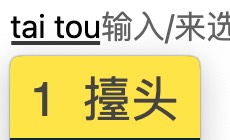
The reason is:
① According to current consensus, the simplified and traditional form of 【抬】 is the same, both 【抬】. 【擡】 is a variant character of 【抬】, not a traditional one. (Ref: https://github.com/rime/home/issues/831)
② In Rime’s essay.txt vocabulary list, 【擡】 is used in composing words. The author originally thought 【擡】 was traditional and 【抬】 was simplified.
③ Rime uses OpenCC for simplified-traditional conversion at the bottom layer, but OpenCC does not consider 【擡】 a traditional character, so it does not convert 【擡】 into 【抬】.
There are four ways to fix this anomaly:
① (Not recommended) Modify Rime’s shared configuration file essay.txt, change words containing 【擡】 to use 【抬】, then redeploy Rime.
② (Not recommended) Modify Rime’s user configuration file luna_pinyin.extended.dict.yaml (if you use Moon Pinyin), add words composed of 【抬】 there, and redeploy. But this causes both 【抬头】 and 【擡头】 to coexist.
③ (Recommended) Download the latest essay.txt from the Rime GitHub repo. The author has changed all words containing 【擡】 to use 【抬】. Overwrite it into the shared configuration directory and redeploy Rime. (You may also update the luna_pinyin.dict.yaml. I have Rime 0.15.2 installed which is the latest version, but the essay.txt and xx.dict.yaml files in the shared configs are not as updated as those on GitHub. =.= # )
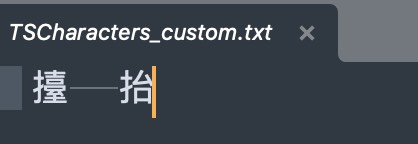
④ (Workaround) Modify Rime’s shared config. Add a TSCharacters_custom.txt file under the opencc/ subdirectory of the shared config directory with a line “擡 抬” (tab-separated, not space). Then modify t2s.json to include TSCharacters_custom.txt in the “conversion_chain” so that OpenCC converts 【擡】 to 【抬】 during simplified-traditional conversion. But this means the variant 【擡】 cannot be input in simplified input methods anymore.
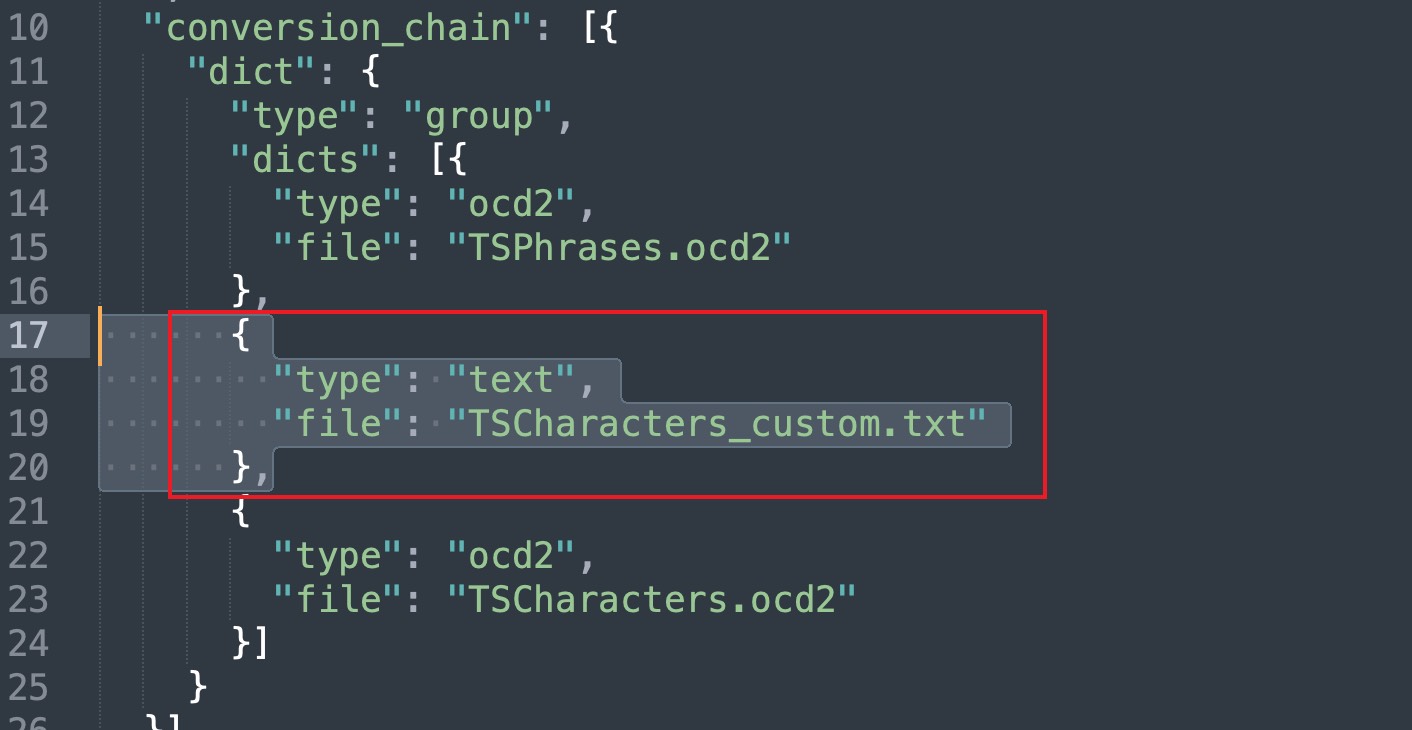
If you don’t want to alter the opencc/ config in the shared directory, you can create an opencc/ directory under the user config directory, then place the needed t2s.json, ocd2 files, and the custom TSCharacters_custom.txt there. Rime will prioritize the user config opencc/ folder; if none, then fallback to shared config.
Some Ideas 
- For the issue of custom phrases not adjusting frequency, could a Lua filter script be written to filter out custom phrase entries from the candidate list first, then add the phrase into the dynamic user dictionary? Wouldn’t that solve the problem?
The question is whether such an interface is available at the bottom layer. Looks like there has been one: https://github.com/hchunhui/librime-lua/pull/80
- The macOS native input method’s English-Chinese mixed input is very convenient. It’s not about toggling between Chinese and English. For example, in Chinese input mode, typing “volunt” automatically suggests the English word “volunteer”. How is that implemented?
Currently, I use a trick: treat English word codes as abbreviated pinyin, then expand them into recognizable pinyin syllables. For example:
Apple   a po po le
Google  gou o o gou le
Linux   li nu xi
macOS   ma ce o si
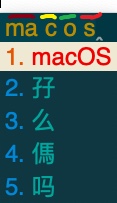
This neither interferes with pinyin segmentation nor does it lose frequency tuning, and simultaneously allows English word input with abbreviated pinyin.
The only downside is that in the input method display, the code is segmented into parts. See below: it is segmented into four parts: ma, c, o, s. Compare with Apple’s native input method, which shows the code for “macOS” unsegmented.
Could we refer to: https://github.com/BlindingDark/rime-easy-en (1. The patch’s include seems wrong, just copy into yaml directly, don’t use that include example. 2. It has an issue that although the English input method is referred in Moon Pinyin, the frequency tables are isolated: Moon Pinyin ignores English word frequencies and fixes them to a position.)
- Actually, whether it’s custom phrase frequency issues or mixed English input, fundamentally these are problems of the underlying segmentors and translators. Could we write a Lua script to handle them perfectly, solving code and frequency issues?